

Check out the newest podcast from Blind Bargains. We will start posting about their new episodes of the podcast here
 Michael Doise
Quick Tip: Zooming without the mouse?
It is well known that zoom users use the mouse to navigate the Mac, but what if you did not want to use the mouse and were primarily a keyboard user. How would you move the zoomed region of the screen?
Moving the zoom region is very simple with the keyboard. As long as VoiceOver is off, you can use the Control and Option keys along with the arrows to move the zoom area around the screen without the mouse.
Quick Tip: Copy the last thing VoiceOver reads to the clipboard.
Having trouble hearing something VoiceOver says and just want to paste it as text to navigate and work with the way you want to? Here is how.
Steps to copy last spoken VoiceOver text to clipboard
- Find the information you would like to be copied.
- take 3 fingers and tap 4 times on the screen. This may take some practice.
- VoiceOver will repeat the last thing it said, and will then say, “Copied to pasteboard.”
It is that simple!
So what is a pasteboard?
You may be wondering as you read the instructions above about that word pasteboard. All it means is that what you copied went to the clipboard. Pasteboard is a neat word the folks at Apple came up with to represent the clipboard.
VO Change
VO Changed is designed to help early adopters of new iOS versions learn the new features of the VoiceOver screen reader. The app also discusses new iOS features and how to access them with VoiceOver.
VO Change
VO Changed is designed to help early adopters of new iOS versions learn the new features of the VoiceOver screen reader. The app also discusses new iOS features and how to access them with VoiceOver.
Quick Tip: Enabling Extensions in iOS 8
New feature added with IOS 8 that many people still don’t know about is extensions. With extensions, you can extend the power of your iPhone iPad or even Mac. Here’s how to enable them in IOS.
- You must first install apps like Tumblr and Pinterest that contain extensions from the iOS App Store
- If you find a share button in iOS, you can use an extension there. tap, or double tap on the share button to activate it. Check picture 1 below for an example of a share screen.
- scroll, or flick to the end of the list of sharing options, and find the More button and activate it.
- You will see a list of the options you have available on your iOS device. activate each available switch to use that feature in future sharing screens. See picture 2 below for reference.


That’s all there is to it. Now, you can use Safari or any other app in conjunction with apps like Tumblr and Linkedin to post content without being in that app.
attachment-555eb785e4b0e15bc3f5d61e
img-555eb785e4b0e15bc3f5d61e
VO Starter
VO Starter is the first VoiceOver training app for iOS that lets users try out VoiceOver gestures and controls without making changes to other iOS apps.
VO Starter
VO Starter is the first VoiceOver training app for iOS that lets users try out VoiceOver gestures and controls without making changes to other iOS apps.
Update: Accessibility on the Apple Watch

While the built in apps on the Apple Watch are as accessible with VoiceOver as other iOS apps are, many third party apps are not accessible at this point. It is worth noting though that the watch is a week old on people’s hands, so I would be patient with developers I will start a list of apps here that are currently inaccessible, and I will post when they become accessible.
Inaccessible
- Trivia Crack
- Calcbot
- Transit App
- Shazam
- Dictionary.com (Word of the day section only)
- QVC. Usable, but flicking does not work between screen elements.
Accessible Apps
- Workflow
- Dark Sky
- Apple Store
- Keynote
- Double Post
- SquareSpae Metrics
- Apple Store
Again, Feel free to comment and add to this list. As I try new apps I will keep updating the list. Developers, keep checking this list to see if your apps are accessible or not.
The Apple Watch – One Week Later
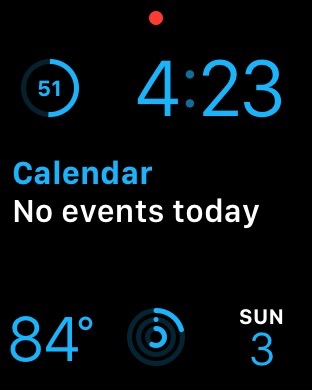
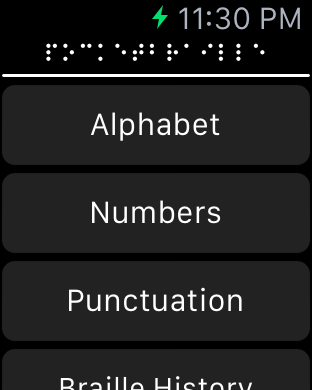
So I have had the Apple Watch now for 1 week, and I am very pleased with how it works. I have even finished my first Apple Watch app that will be out soon called PocketBraille. The iAccessibility Report will go through several tips and tricks for using the Apple Watch with Zoom and VoiceOver throughout the week. Please let us know here in the comments or on Twitter at @iaccessibility1 if you want us to review something with the watch. We will also have screenshots and I will post new things I find with the watch as I use it.

Apple Watch Accessibility
Want to learn how to use the Apple Watch with VoiceOver or Zoom? Check out this article from AppleVis.